3D printing guide
Can you 3D print a GLB file?
Yes, the geometry inside a GLB can be prepared for 3D printing—but a model that looks correct in a web viewer is not automatically ready for a slicer or production service.
Published September 8, 2026 · About 6 minutes
The short answer
GLB is an asset format, not a print-readiness certificate
Khronos defines glTF as a format for efficiently transmitting and loading 3D scenes and models. A single binary GLB can carry meshes alongside materials, textures, skins, animations, cameras, and other scene data. A print workflow cares about a narrower question: can the geometry become a stable physical object at the requested size?
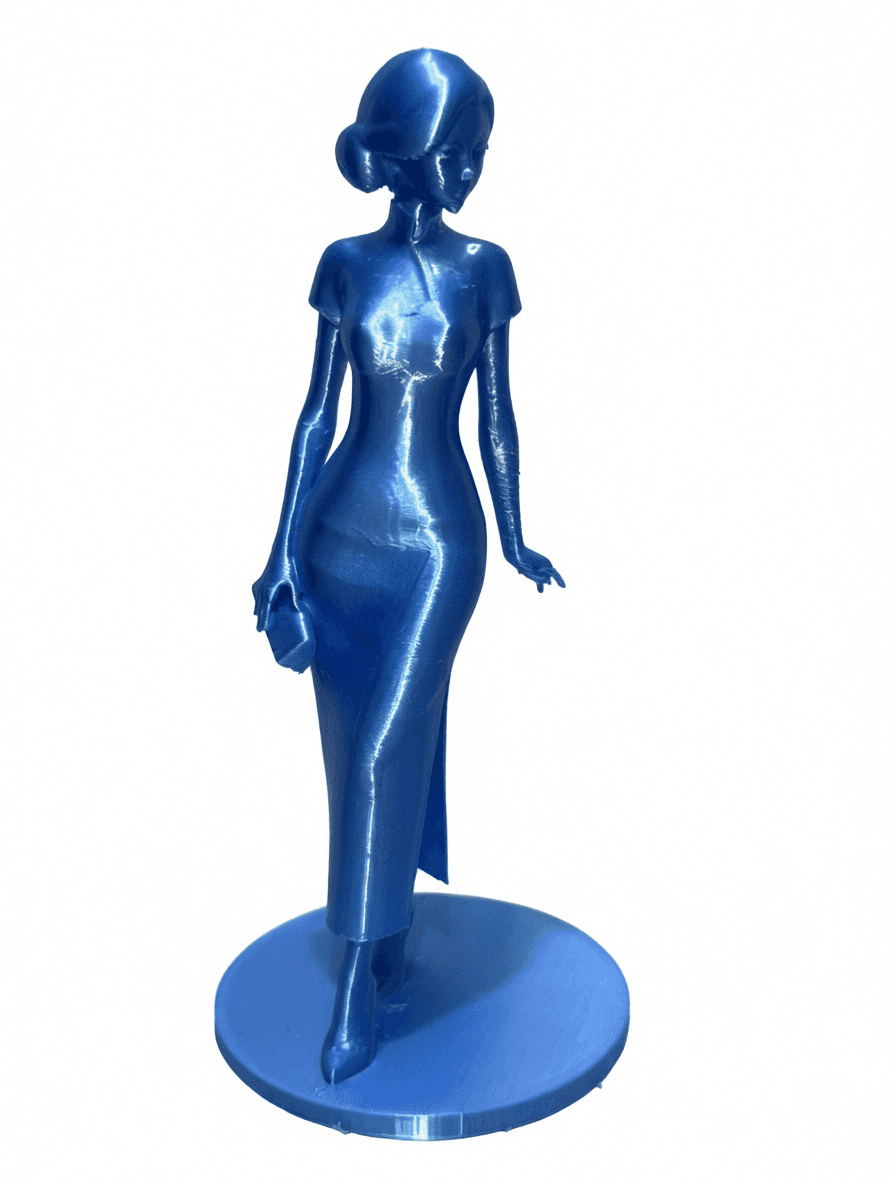
Six checks before printing GLB geometry
Closed geometry
A printable shell should not have unintended holes, open edges, or non-manifold connections.
Wall thickness
Thin hair, fingers, clothing edges, and accessories may look fine on screen but be too fragile to manufacture.
Scale and units
Confirm the intended physical size after import; a visually correct model may not carry the expected print dimensions.
Connected parts
Floating pieces and intersecting shells need review so every visible detail becomes a supported physical part.
Pose and supports
Outstretched limbs, hair, and props may need a different orientation or support strategy for the chosen process.
Color treatment
Textures help a digital model look finished, but a printer or service may use material colors, vertex color, or a separate color workflow.
GLB versus common print handoff formats
GLB is valuable when you want one portable file for an interactive, textured 3D asset. Printing software often emphasizes formats built around geometry or manufacturing data. For example, PrusaSlicer documents support for STL, STEP, 3MF, OBJ, and AMF—not GLB—so conversion or a separate preparation step may be required.
Conversion alone does not repair a model. Exporting GLB geometry as STL or 3MF can change the container, but it does not automatically fix open edges, fragile details, incorrect scale, or unsupported parts. Inspect the converted result in the exact slicer or service that will produce it.
How SnapTo3D’s figurine workflow works
SnapTo3D’s public flow begins with a completed, eligible character in your SnapTo3D library. From that character card, you can start the available print flow, select the offered options, and continue to order details. The product does not currently expose a public form for uploading any external GLB for printing.
If your starting point is a photo, follow the source-photo preparation guide, create the character, inspect the digital result from multiple angles, and then use the print option shown for an eligible model.
A practical preflight sequence
- 1. Inspect the model visually. Look around the complete character for missing surfaces, merged limbs, floating accessories, and unexpected gaps.
- 2. Confirm the target process. Resin, filament, and full-color services have different limits and color capabilities.
- 3. Validate and repair geometry. Check manifold edges, wall thickness, disconnected shells, normals, and intersections with suitable mesh tools.
- 4. Set physical dimensions. Evaluate delicate details at the real intended height rather than at an arbitrary viewport scale.
- 5. Slice and preview. Review every layer, supports, contact points, estimated material, and warnings before committing to production.
Frequently asked questions
Can a GLB file go directly into a 3D printer?
Usually not directly. A slicer or print-preparation workflow must first interpret the geometry, set the physical size, choose an orientation, and generate machine instructions. Format support varies by slicer and service.
Is GLB the same as STL or 3MF?
No. GLB is the binary form of glTF and can package a scene, meshes, materials, textures, skins, and animations. STL mainly describes surface geometry, while 3MF is designed to carry manufacturing-oriented model information. The best handoff format depends on the print workflow.
Does a model being watertight guarantee a successful print?
No. Closed geometry is only one check. Wall thickness, scale, small details, balance, overhangs, orientation, supports, material, and printer capability also affect the result.
Will the texture in my GLB be printed?
Not automatically. Many common printers produce a single material color, and even full-color services may require a specific supported color workflow. Confirm color handling with the slicer or production provider.
Can I upload any external GLB to SnapTo3D for printing?
SnapTo3D’s current public workflow starts from an eligible character generated in your SnapTo3D library; it does not provide a public arbitrary-GLB print upload. Available print options are shown when you start the figurine workflow from an eligible model.
Technical references
Format descriptions and compatibility notes were checked against these official resources: