Character creation
How to Make a Chibi Character from a Photo
By SnapTo3D · Published · Updated
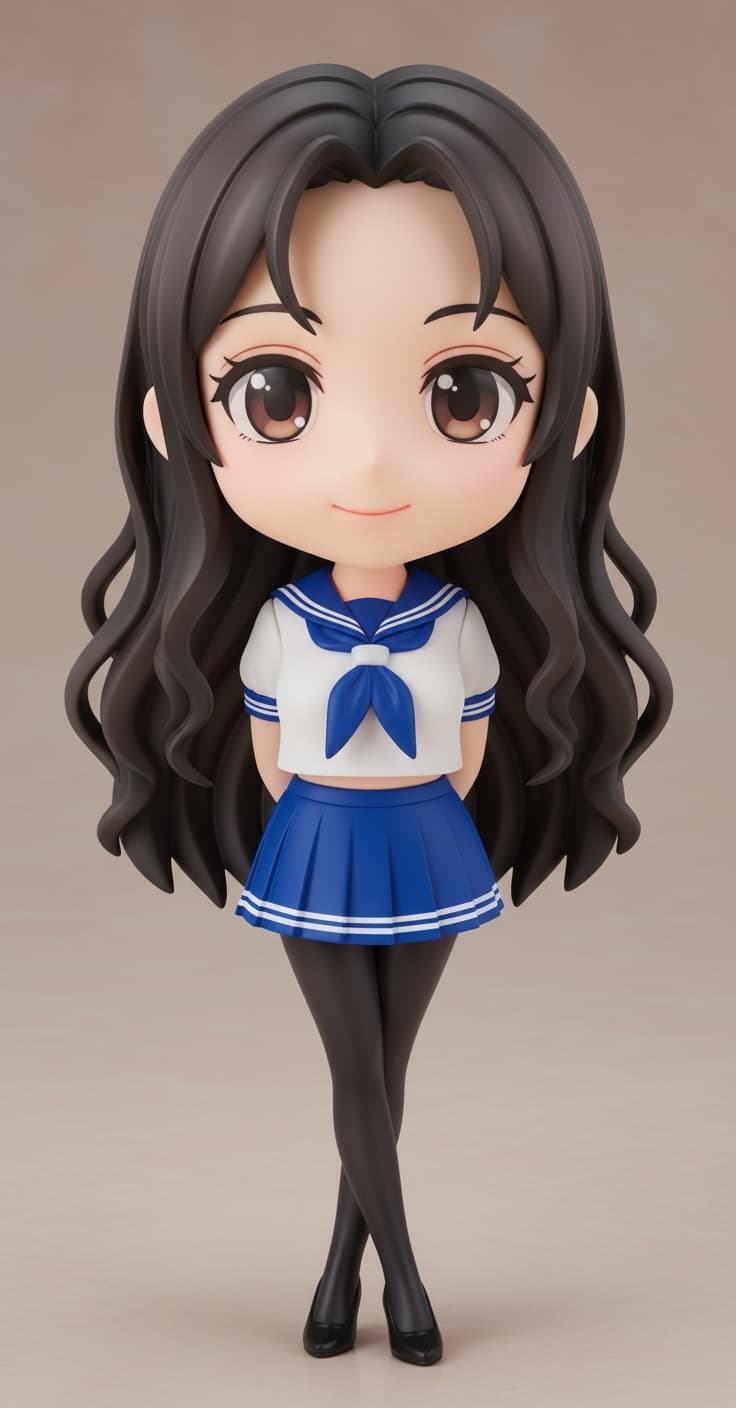
To make a chibi character from a photo, choose a clear photo of one person, select the Chibi style, generate the model and inspect it from several angles. SnapTo3D creates a stylized 3D character rather than simply applying a cartoon filter.
1. Choose the photo
A large head does not compensate for a blurry face. Choose a photo where the identity-defining features are visible before thinking about the final proportions.
- Include one person and keep the face unobstructed.
- Use a full-body photo if shoes, clothing and stance should influence the result.
- Prefer even lighting and a background that does not merge into hair or clothing.
- Use an image you own or have permission to upload.
2. Select Chibi and review the generation settings
Open the homepage generator and select the Chibi style. Sign in when prompted, review the current credit requirement and confirm the generation only when you are happy with the photo. Check the Pricing page for current packs rather than assuming that registration includes free generation.
The current homepage offers its action choices for the Japanese style. If walking or swimming is your primary goal, compare that workflow before spending credits on a static chibi model.
3. Inspect the generated character
Use the model preview to check the front, both sides and the back. Pay particular attention to fingers, hair, shoes and anything partly hidden in the input photo. The system has to infer unseen surfaces, so a believable front view does not guarantee a faithful back view.
If a feature is wrong, first ask whether the source photo actually shows it clearly. A cleaner photo can be more useful than repeating the same generation. Regeneration may consume credits; check the displayed requirement.
4. Choose the next step
Keep the completed character in your library and use the actions available on its card. Eligible models can be downloaded as GLB for compatible external tools. Studio use and other actions depend on the model and workflow.
For a physical collectible, open the eligible figurine workflow and review its current options. Do not assume that a downloaded GLB can be sent straight to a printer or that digital textures will automatically become printed colors.
A quick quality checklist
Compare the model with your photo at the same approximate viewing angle. Check whether the hairstyle, outfit blocks and overall silhouette are recognizable, rather than expecting realistic anatomy from a deliberately stylized result. Save the original photo and downloaded model separately.
Frequently asked questions
Will the chibi model look exactly like my photo?
No. It intentionally changes proportions and may infer details incorrectly, especially on hidden surfaces. Inspect the result before reusing it.
Is the generated character automatically animated?
No. The Chibi option should not be treated as equivalent to the homepage’s Japanese-style animation workflow.