Character creation
How to Make a Chibi Profile Picture
By SnapTo3D · Published
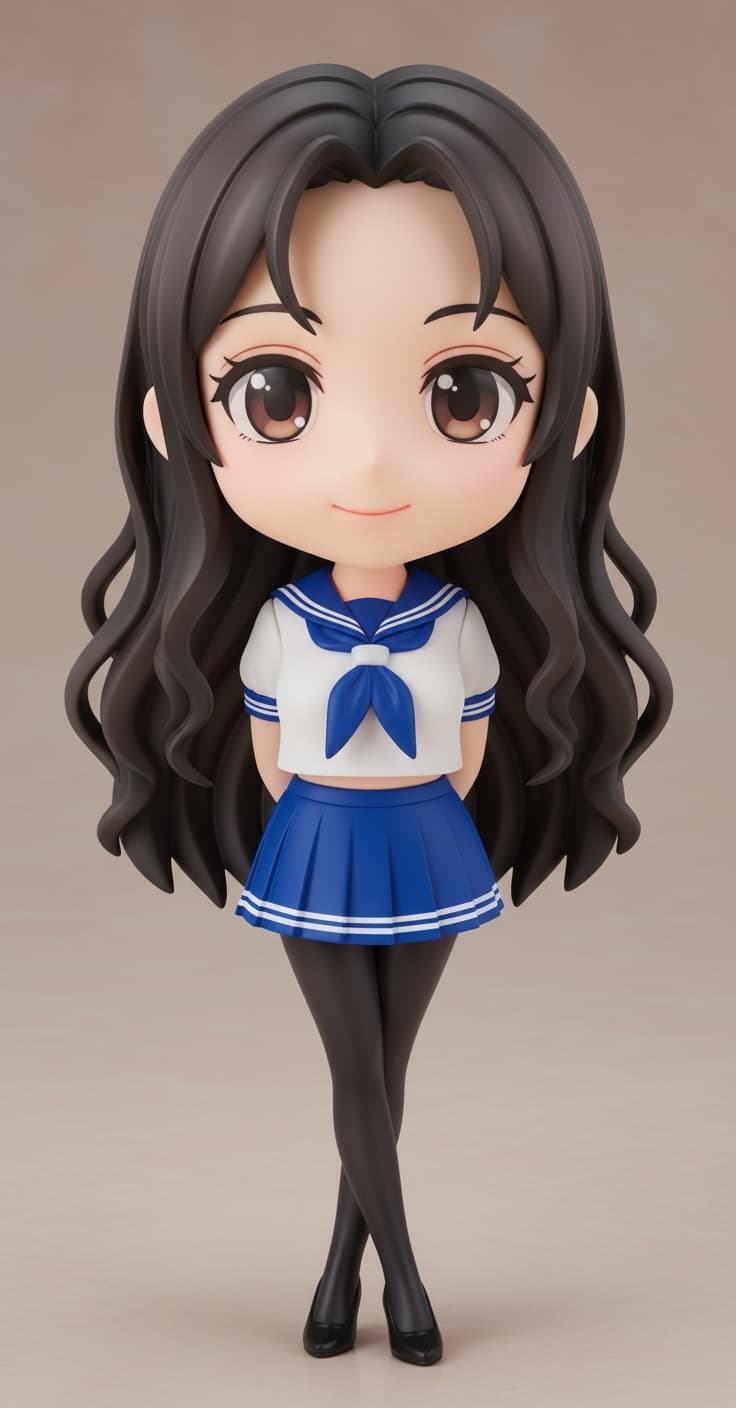
To make a chibi profile picture, first create or choose a character, frame a clear head-and-shoulders view, capture a still image and crop it for the destination profile. A profile picture is a 2D image; you do not upload the GLB model as an avatar photo.
Decide whether you need a new character
If you already have an eligible character in your library, reuse it rather than generating again just to change the crop. To make a personal Chibi model, begin with an authorized, clear photo and follow the linked generation tutorial. Custom generation requires an account and credits.
Public characters may help you try a composition, but they are not a personalized likeness. A shared sample character should not be presented as an exclusive design made only for you.
Frame the character in Studio
Open the public Studio overview, then enter the authenticated workspace. Add an available character, choose a simple scene and adjust the camera and composition until the face is easy to recognize. Aim for a head-and-shoulders view rather than shrinking the entire body into a tiny avatar.
Keep the face away from the outer edge. Leave room above the hair and at both sides because many services display a square image through a circular mask. A centered square preview alone does not show what that mask will remove.
Capture the still and prepare a separate copy
Studio provides a scene capture, not a dedicated one-click profile-avatar export. Cropping, resizing and any background removal described here are external editing steps. No platform-specific upload compatibility test is claimed.
- Use the Studio screenshot control in its viewing mode to capture a PNG image.
- Keep the original capture before editing it.
- Use an image editor to make a square crop and preview a circular mask.
- Check the destination service’s current file type, dimensions and size limit before uploading.
Check at the size people will actually see
Reduce a copy to a small preview, such as 64 × 64 pixels, as a readability test rather than a universal upload specification. If the eyes and hairstyle become indistinct, move the camera closer or simplify the background.
Check light and dark surroundings. Avoid relying on a thin outline that vanishes against a matching background, and avoid tiny text that becomes unreadable after resizing.
Keep changes reversible
Save the original photo, model and full-resolution capture separately from the cropped avatar. You can then make a different crop for another service without regenerating the character or repeatedly compressing the same small image.
A static profile picture does not require walking or dancing animation. Do not buy an additional motion workflow solely to produce a still image unless the desired pose actually needs it.
A quick final review
Confirm that the circular crop retains the hair, face and any important accessory. Check that the screenshot contains the scene you intended and no unwanted personal details. Upload it only after checking the destination’s rules and viewing the final result there.
Frequently asked questions
Can I upload a GLB as a normal profile picture?
Most image-avatar fields expect an image rather than a 3D scene. Capture and prepare a still, then check the specific service’s accepted formats.
Does Studio automatically make a transparent, square avatar?
This workflow uses a scene screenshot. Do not assume automatic transparency or a preset square avatar size; prepare those requirements in an image editor when needed.