Have a voice conversation
Speak into your microphone and hear your character respond. Replies also appear as subtitles inside the viewer. You can interrupt a response and switch between full-body, half-body and fullscreen views.
AI talking avatar · Experimental
Give your SnapTo3D character a voice and have a live conversation in your browser. Start with a public character or open a completed character you created from a photo. The experimental digital human experience combines spoken replies with supported facial expressions and body movement.
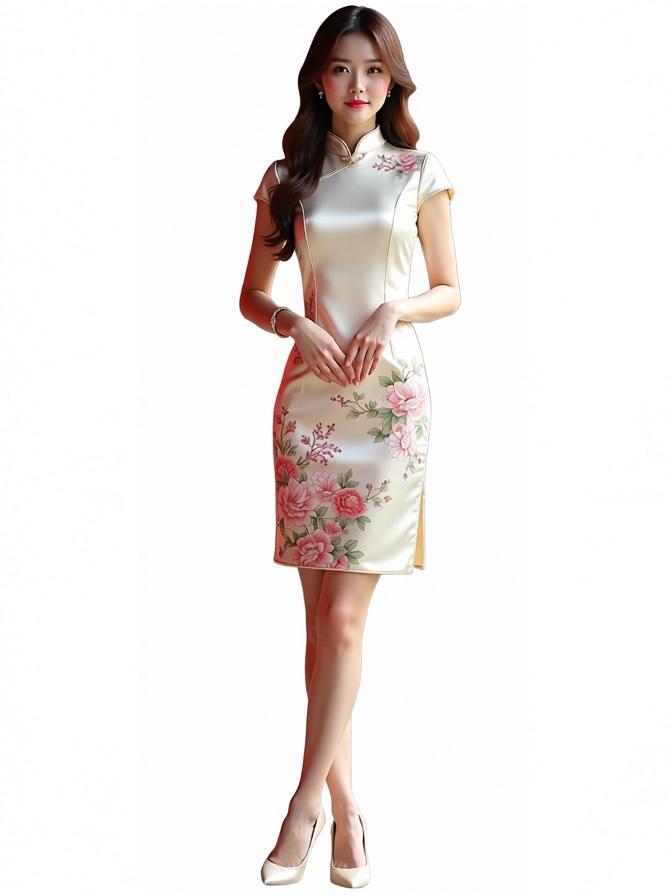
Speak into your microphone and hear your character respond. Replies also appear as subtitles inside the viewer. You can interrupt a response and switch between full-body, half-body and fullscreen views.
Sign in and choose a public character in My Characters to explore the experience before generating your own. Completed personal characters have the same experimental launch button.
Optionally enable your camera for visual questions, or save conversation memory in this browser. Both are optional, and camera frames are not saved in the conversation archive.
STEP 1
Use the public-character section for an existing avatar, or select a completed personal character. To make an avatar from your photo, first create a 3D character on the homepage.
STEP 2
Click “Start digital human (Experimental)” beneath the character card. The viewer opens in the page and prepares the character. Available motion depends on the model and its skeleton.
STEP 3
Click “Start conversation”, allow microphone access and wait for loading to finish. Initial model downloads can take time. A browser and device capable of running the local AI model are required.
STEP 4
Speak naturally, change the framing or enable the camera when you want to ask about something visible. For your own characters, use “Calibrate mouth / eyes” if the facial alignment needs adjustment.
A talking avatar adds conversation to a character you can already inspect in 3D. SnapTo3D lets you open that experience from the same library used for your generated models and public characters. You can try it with an existing public character, then create a personal character from a clear photo when you want a different appearance.
Rigged humanoid characters can use the fuller set of supported facial and body behaviors, including mouth movement, blinking and idle poses. Chibi and other models without a compatible skeleton use a simplified experience. Expressions, alignment and movement vary between characters; a successful 3D generation does not guarantee every digital-human effect will work equally well.
Live conversation processing runs on your device: conversation text, microphone audio and camera frames are not sent to our servers or a third-party AI service for dialogue inference. Account access, character generation, resource downloads and initial facial adaptation are separate online operations. Facial adaptation may send rendered character views to an AI service; it is not the live camera conversation.
Optional conversation memory stores original voice inputs and reply text in this browser for up to seven days. It does not sync between devices. Only recent conversation that fits the model context is restored, and memory may be incomplete. Historical camera-assisted replies are not replayed as current visual evidence. You can clear the archive from the conversation interface.
This feature is experimental. Use a WebGPU-capable browser and a device with sufficient memory; initial downloads and response times depend on your hardware and connection. Recognition, character identity answers, visual understanding and facial motion may be imperfect. Keep microphone and camera permissions under your control, and check important answers independently.
First generate a 3D character from a suitable photo on SnapTo3D. Once the character is completed, open My Characters and click “Start digital human (Experimental)”, then start the voice conversation. You can also try a public character without generating a new one first.
No. Sign in, open My Characters and expand the public-character section. Choose a public character and use its experimental digital-human button.
Both can open the experience when their models are completed. A compatible rigged humanoid supports more body and facial behaviors. Chibi and unrigged models use a simplified experience, and results vary by model.
Only when you enable the optional camera. The conversation uses captured frames for relevant visual questions, rather than continuous video understanding. You can turn the camera off at any time, and camera frames are not saved as conversation memory.
Live voice, text and camera conversation processing happens on your device. If you enable memory, original recordings and reply text are stored in this browser for up to seven days. Character generation, model downloads and facial adaptation are separate online steps.
The browser must download and initialize the local AI models. Download caching can help later visits, but initialization still takes time and browser storage can be cleared or evicted. Performance depends on your browser, GPU, available memory and connection.
This page describes the live digital-human conversation experience. It does not provide a dedicated export of the conversation as a talking-avatar video. Separate SnapTo3D scenes offer their own media-creation features.
For your own characters, open “Calibrate mouth / eyes” inside the viewer, adjust the positions and save. Public characters use shared adaptation data instead of a personal calibration step.